Add and remove apps from inside a Collection, right on the Collection’s page.
New
A Collection’s contents aren’t fixed. You can change which apps are in a Collection at any time, directly from the Collection’s page — no separate “manage” screen. Every Collection you created is on the My collections tab under Discover → Collections.
Walkthrough: adding and removing apps in a Collection.
You need edit access to the Collection — Editor or Owner — to add or remove apps. Recipients with User access can use the apps but can’t change the contents.
Click Collections under Discover in the sidebar, then click the Collection. Collections you created are on the My collections tab.
Click Add apps
The Add apps button is in the top right of the Collection’s page. It opens the Add apps to [Collection name] dialog.
Find the apps you want
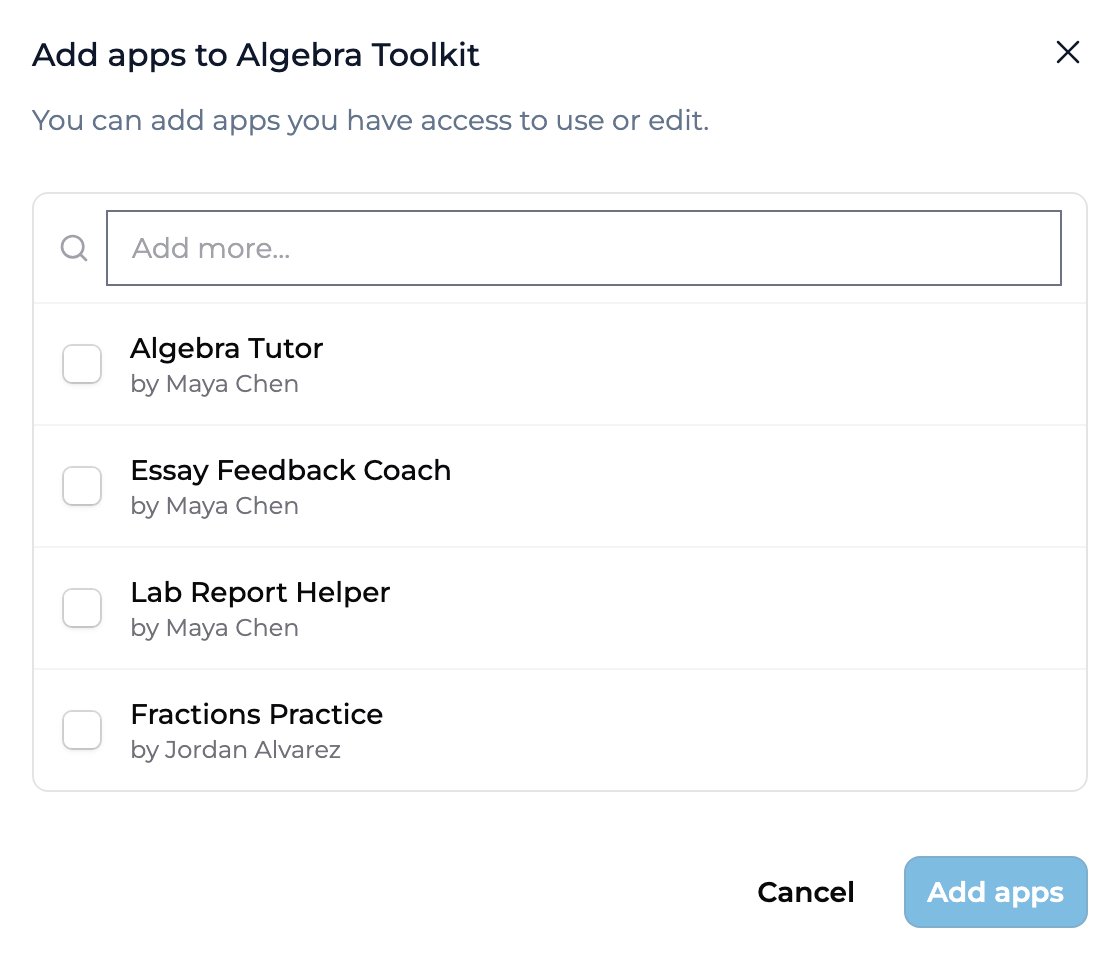
The dialog lists apps you have access to, each labeled with its creator (by …). Use the Add more… search field to filter by name. You can add any app you have access to use or edit — your own apps, apps shared with you, or apps from another Collection you can see. Apps already in the Collection don’t appear here.
Select and confirm
Check the box next to each app you want to include, then click Add apps. The button stays inactive until you’ve selected at least one app, and reflects your selection count (for example, Add 3 apps).
The Add apps dialog: search for apps you can access, check the ones to include, then click Add apps.
Click the ⋮ menu on the app’s card and choose Remove from collection.
Confirm
Click Remove in the confirmation dialog. The app leaves the Collection right away.
Removing an app from a Collection does not delete it. The app stays in its original space, keeps its owner, and remains in any other Collections it belongs to. You’re only changing this Collection’s contents.
To rename a Collection, click the pencil icon next to its name at the top of the Collection’s page, or choose Rename from the Collection card’s ⋮ menu on the Collections list. Editors and Owners can rename.Delete isn’t on the Collection’s page. Go back to Discover → Collections, open the Collection card’s ⋮ menu, and choose Delete. Only Owners can delete a Collection. The apps in it aren’t affected, but people you shared the Collection with lose access to the apps through it.
Recipients don’t need to re-add the Collection after you change it. Apps you add appear automatically; apps you remove drop out of recipient views. Everyone sees the updated set on their next visit. The same is true when an app’s owner publishes a new version — the update flows through the Collection. See Using a shared Collection for the recipient side.
No. Remove from collection only takes the app out of this Collection. The app stays in its space, keeps its owner, and stays in any other Collections it’s part of.
Which apps can I add?
Any app you have access to use or edit — your own apps, apps shared with you, and apps from another Collection you can see. Apps already in the Collection are hidden from the picker.
Where do I find my Collections?
All your collections are under Discover → Collections → My collections.
Can recipients add or remove apps?
Only if you’ve given them Editor (or Owner) access. The default User access lets recipients use the apps but not change the Collection.
What happens to recipients when I remove an app?
It drops out of the Collection for everyone. Recipients who could reach the app only through this Collection lose access to it. Their past sessions aren’t deleted.